Dashboard
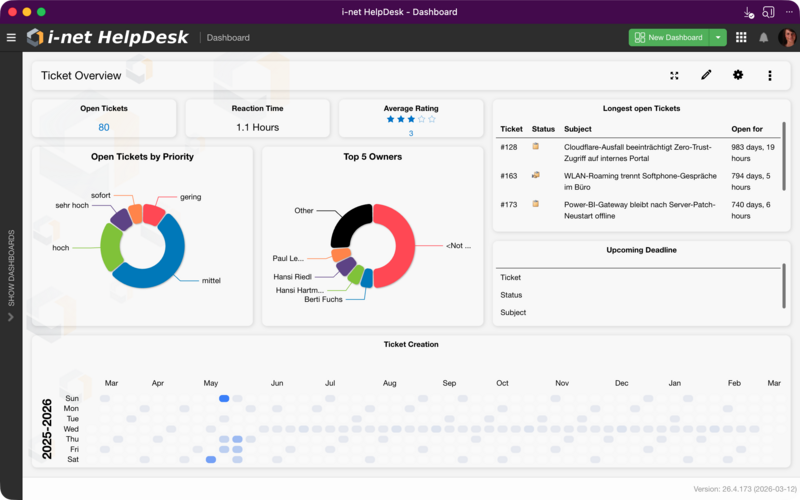
The Dashboard application provides a powerful, fully customizable workspace for monitoring and visualizing the most important information. Whether server health, project progress, or key metrics - dashboards bring everything together in one place.
Any number of dashboards can be created. Widgets can be arranged freely on a flexible grid with visualization styles such as gauges, charts, tables, and traffic lights. Most displays can be updated in real time, so data is usually current without the need to refresh.
Dashboards can be shared with colleagues and teams and are well suited for collaborative monitoring and reporting.
Getting Started
When the Dashboard application is opened for the first time, the sidebar on the left shows all dashboards with access. If none exist yet, the New Dashboard button in the top-right corner can be used to set up a first dashboard with live data right away.
For details on creating and configuring dashboards, see the Working with Dashboards page.
Dashboard Sidebar
The sidebar on the left lists all available dashboards. Dashboards are organized into collapsible groups when a grouping category is assigned. Clicking a dashboard name opens it in the main area. The sidebar can be shown or hidden via the hamburger menu icon in the top-left corner.
Each group can be expanded or collapsed independently, so a large number of dashboards remains easy to navigate.
Dashboard Toolbar
The toolbar at the top of each dashboard provides quick access to the main actions:
-
Fullscreen - Shows the dashboard in fullscreen mode, ideal for wall-mounted monitors or presentations.
-
Edit Widgets - Enters edit mode for adding, moving, resizing, and configuring widgets.
-
Dashboard Settings - Opens the settings dialog for the current dashboard.
-
More Options - The three-dot menu provides additional actions such as exporting, importing, and deleting the dashboard.
Real-Time Updates
Many dashboard widgets receive live data updates automatically. When a dashboard is opened, supported widgets start receiving current data in real time. Values such as CPU usage, RAM consumption, active user counts, and other metrics are updated continuously for these widgets without reloading the page. Not all widget types support live updates.
If a widget encounters an issue while fetching its data, a clear error message is shown within the widget; the rest of the dashboard is unaffected.
Troubleshooting
When unexpected behavior occurs, the following messages and their solutions may help:
-
"No Dashboards available" - No dashboards have been created or shared with the user account. Create a new dashboard or ask an administrator to share one.
-
"Dashboard not found" - The dashboard may have been deleted or access may have been revoked.
-
"Widget no longer available" - A previously installed widget type is no longer present, for example because a plugin was removed.
-
"No Data" - The widget shows no data. Possible causes: unavailable data source, or the dashboard's data owner lacks the required permissions. For some widgets (e.g. in HelpDesk), the message also appears when the underlying feature has not been used yet.
-
Widget displays an error - Check widget settings; all required fields (URLs, paths) must be configured correctly.
© Copyright 1996 - 2026, i-net software GmbH; All rights Reserved. Imprint
