Web API
The i-net PDFC server provides API access to a given set of functions. Users must have the Web API access permission to use it. Furthermore, users may be required to have permissions for specific functions as well.
The Web API can be used in two ways: interactively through the Web API user interface, and programmatically from a client such as curl or a generated client library. The following sections first describe the user interface and then the programmatic access. The complete API is described in Swagger files, which can also be used to generate clients (see Swagger Files).
The following list of API end-points is available to the current user:
The extension list is not available in Help Center Mode.
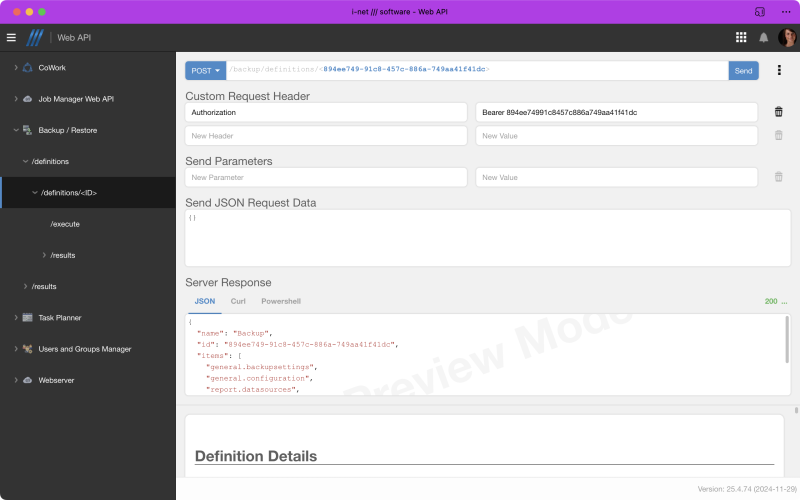
Web API User Interface
The Web API user interface allows browsing the available Web API extensions, reading the documentation for each end point and trying them out in the browser.
Request Area
Requests can be customized to some extent: users can set the HTTP method (POST, GET, HEAD ...), update dynamic parts of the URL, e.g. IDs that address specific webAPI contexts, request headers as well as the request JSON.
The URL path is usually not editable, except for the parts that accept IDs for example. When editing ID parts and navigating further in the side navigation, these ID parts will be stored remembered for the current browsing page so that users can seamlessly jump forward and backward. Re-sending a request can be done using the Send button.
Using the options menu besides the Send button allows enabling the Preview Mode, show the JSON data input area and the area for additional Request Headers.
Custom Request Parameters
Additional Custom Request Parameters can be sent along with a request if required by a WebAPI endpoint. These can be, e.g. format or file parameters.
Custom Request Header
Additional Custom Request Header can be sent along with a request if required by a WebAPI endpoint. These can be, e.g. Bearer Token.
Send JSON Request Data
The JSON Post Data area allows sending along a JSON request required for a specific WebAPI endpoint. Hints about the required JSON are usually given in the help page below the response area.
Note: Some HTTP methods do not support posting JSON data. The area is deactivated then.
Preview Mode
The preview mode is an option at the response panel of the Web API Remote GUI. If enabled, it will send additional information to the server which can decide to not actually execute a given command.
If a command is executed with actual data in preview mode heavily depends on the command. Usually, the preview mode makes sense for potentially destructive commands like delete.
Response Area
The response area of the Web API remote GUI consists of the request URL, the response status code and -message. An option panel allows toggling the preview mode (on by default).
If the response status message wasn't set, it will display a generic message (three points: ...). This usually happens when an API points sends back binary data.
Note: Binary data responses can result in a Download button being display instead of a JSON (or other available formats) response. The request is performed again when clicking the Download button. That means that the command will be executed on the server twice.
Programmatic Access
This section describes how to access the Web API from a client such as curl or a generated client library.
Getting Started
This section walks through a first request using the Task Planner as an example. The same steps apply to every other Web API extension.
To use the Web API programmatically you need the Web API access permission as well as the permission of the extension you want to use, for example Task Planner. See Permissions for details.
All requests are sent against the /api context of the server, for example https://[HOST]:[PORT]/api/<extension>/[Command]. A first read-only request, listing the tasks of the current user, looks like this:
# List tasks using basic authentication
curl -Lsu username:password "https://[HOST]:[PORT]/api/taskplanner/list"
The -L flag follows redirects, -s suppresses progress output and -u enables basic authentication. For scripted access, use token authentication instead (see Authentication). The available commands of each extension, including their parameters, request bodies and response fields, are described on the extension's own help pages. The Task Planner commands are listed under Task Planner.
Authentication
Requests to the Web API require proper authentication. For programmatic access, use the Token Authentication plugin, which logs in the user with every request without creating a session.
Each session consumes memory and slows down the server.
Avoid the BASIC authentication scheme for scripted access, because it creates a new session on every login.
Access Tokens
Create a token in the administration and select the permissions the token may use. For every registered Web API context the plugin provides a matching token permission: for /api/taskplanner the permission key is webapi.taskplanner. The permission covers the complete tree below /api/taskplanner and is not granted to a token automatically, but has to be selected when creating or editing the token. The token is then sent with each request:
# List tasks using a bearer token
curl -LsH "Authorization: Bearer <access_token>" "https://[HOST]:[PORT]/api/taskplanner/list"
Authenticated Sessions
If you use the BASIC authentication scheme, a session is created. Reuse this session for subsequent requests by sending the Session Cookie with each request; otherwise, unnecessary sessions accumulate and slow down the server. To limit the number of sessions created within a certain timeframe, an additional defender plugin is available, which blocks the user and IP from logging in if exceeded.
Error Responses
The error format depends on whether the endpoint is annotation-based or a legacy endpoint. Annotation-based endpoints return a structured JSON error response:
{
  "status": 400,
  "code": "validation_failed",
  "message": "The task could not be saved.",
  "details": [
    {
      "location": "body",
      "path": "name",
      "code": "required",
      "message": "A task name is required."
    }
  ]
}
| Field | Description |
|---|---|
status |
The HTTP status code of the response. |
code |
A stable, machine-readable error code identifying the error condition. |
message |
A short, safe human-readable summary of the error. |
details |
Optional list of structured detail errors with location, path, code and message. May be omitted or empty. |
Note: Error responses always use Content-Type: application/json. Internal exception messages are never included; clients should rely on the stable code value rather than the message text.
Legacy endpoints, such as the Task Planner, do not use this structure. They signal errors with an HTTP error status and a JSON object containing only a user-friendly message:
{ "error": "The task could not be saved." }
There is no stable machine-readable error code and no structured details.
Response Conventions
The Web API uses standard HTTP status codes. The following codes are the most relevant for clients:
| Status | Meaning |
|---|---|
200 OK |
Successful read or update; the body contains the current state. |
201 Created |
Resource created; the body contains the created object. |
204 No Content |
Successful action or delete without a response body. |
400 Bad Request |
Invalid request, binding error or failed validation. |
403 Forbidden |
The current user lacks the required permission. |
404 Not Found |
Unknown path or resource that does not exist. |
405 Method Not Allowed |
Known route called with the wrong HTTP method. |
406 Not Acceptable |
The requested representation or format is not available. |
409 Conflict |
The operation conflicts with the current state of the resource. |
415 Unsupported Media Type |
The request Content-Type is not supported. |
Content Negotiation
A read operation can offer the same data in different representations. Select a representation with the Accept header or, where available, the format query parameter:
# Select a non-JSON representation using the Accept header
curl -LsH "Accept: text/csv" "https://[HOST]:[PORT]/api/<extension>/[Command]"

# Select the representation using the format parameter
curl -Ls "https://[HOST]:[PORT]/api/<extension>/[Command]?format=csv"
An explicit format parameter takes precedence over the Accept header. JSON is the default representation.
Sparse Fieldsets
Annotation-based endpoints support the global fields query parameter to reduce the size of JSON responses. Only the listed properties are included:
# Return only id and name
curl -Ls "https://[HOST]:[PORT]/api/<extension>/<id>?fields=id,name"
Note: fields only filters the response; the documentation and the Swagger file still describe all readable properties.
Swagger Files
The Web API can generate Swagger files that can be used in external tools for creating custom clients. You can either download a full Swagger JSON file using the URL <your-server>/api/swagger.json. You can also receive a specialized URL for Web API contexts by inserting the extension path, e.g. <your-server>/api/taskplanner/swagger.json.
Note: The Swagger URLs can optionally be made private in the configuration. If the URLs are private, clients have to authenticate before downloading the file.
Generating a Client
Download the Swagger file of the desired context, for example <your-server>/api/taskplanner/swagger.json, and use it to generate a client for your programming language. With the OpenAPI Generator the request is:
# Generate a Java client from the Swagger file
openapi-generator generate -i https://[HOST]:[PORT]/api/taskplanner/swagger.json -g java -o ./taskplanner-client
Authentication
OAuth2 Token Authentication
The installed OAuth2 provider additionally support a token/bearer authentication scheme. The token has to be sent using the header Authorization: Bearer <access_token>. The token itself has to be acquired from the originating provider, e.g. GitHub. The token will then be checked against the originating OAuth provider - more information: OpenID spezification.
# REQUEST
POST /api HTTP/1.1
Authorization: Bearer VGhpcyBpcyBqdXN0IGEgZGVtbyBhY2Nlc3MgdG9rZW4u
Content-Type: application/json
A user authenticated by an access token will be granted the same permissions the user would have using login credentials.
Windows Authentication using NTLM
Windows Authentication using NTLM is a challenge-response based authentication protocol that requires multiple requests to complete. Here are the steps involved in the process:
-
The client initiates the authentication process by sending a request to the API endpoint. This can be done by either:
-
adding the query parameter
?login=windowsto the URL -
or by sending the request with an
Authorization: NTLMheader
-
-
The server responds with a challenge in the form of a NTLM token, which the client must use to compute a response.
-
The client sends another request to the API endpoint, including the computed response in the request headers.
-
The server verifies the response and, if correct, grants access to the API.
Note: It's important to keep track of the session cookie by sending it along with each subsequent request to maintain state.
Note: The client-side implementation of NTLM authentication must be handled by either custom code or by using libraries that can manage the authentication process for you.
Note: For NTLM / windows authentication to be used, the plugin has to be enabled and used as System Authentication provider.
# First Request

# REQUEST
POST /api HTTP/1.1
Authorization: NTLM TlRMTVNTUAABAAAAB7IIogAAAAAAAAAAAAAAAAAAAAAGAbEdAAAADw==
Content-Type: application/json

# RESPONSE with actual challenge
HTTP/1.1 401 Unauthorized
WWW-Authenticate: NTLM TlRMTVNTUAACAAAAAAAAACgAAAABggAAU3J2Tm9uY2UAAAAAAAAAAA==
Content-Length: 0
Date: Mon, 14 Feb 2023 06:48:54 GMT
# Secod Request

# REQUEST with NTLN response computed by the client based on the challenge
POST /api HTTP/1.1
Authorization: NTLM TlRMTVNTUAADAAAAGAAYAEgAQABQAQAAYAAAABAAEADgAAAA1TSU1BAAAAD05NTUxNTkxM0UyMg==
Content-Type: application/json

# RESPONSE
HTTP/1.1 200 OK
Content-Length: ...
Date: Mon, 14 Feb 2023 06:48:55 GMT
© Copyright 1996 - 2026, i-net software GmbH; All rights Reserved. Imprint
